
Deploying Python3 Flask App On Apache 2 (Fedora 35 Server)
A python flask app runs on a Werkzeug’s server during development, by default, but it is highly recommended to use another web server when deploying to a production environment. The two major options available are Nginx and Apache.
Since I’m more familiar with the apache web server on fedora, here’s the way to setup the server and deploy a flask app.
There are two ways for doing this, one by installing the wsgi module in apache, then configuring it, while the other method installs the wsgi module via pip, so it’s installed inside your python environment.
I’ll go with the first method, here. [more on the subject can be found in the mod_wsgi — mod_wsgi 4.9.0 documentation]
Assuming the Fedora 35 server is already setup, and that it has a running apache installation, make sure the following is installed: python3-mod_wsgi and httpd-devel
sudo dnf install python3-mod_wsgi httpd-develYou’ll notice that a configuration file has been created, in my case /etc/httpd/conf.modules.d/10-wsgi-python3.conf
Next, let’s create a sample script. It is recommended at this stage to not use any framework, such flask or Django, so we can test the WSGI module’s functionality first. So, here’s a sample hello-world script:
def application(environ, start_response):
    status = '200 OK'
    output = b'Hello World!'

    response_headers = [('Content-type', 'text/plain'),
                        ('Content-Length', str(len(output)))]
    start_response(status, response_headers)

    return [output]
I will save this script under /var/www/wsgi/sample/app.wsgi
Now, let’s create a VirtualHost config file under /etc/httpd/conf.d/. I will use the name sample.dv as my server alias (will configure this in my client hosts file, as well).
The sample.dv.conf file will look like this: (assuming apache >=2.4):
<VirtualHost *:80>
  ServerName sample.dv
  DocumentRoot /var/www/wsgi/sample

  WSGIScriptAlias / /var/www/wsgi/sample/app.wsgi

  <Directory /var/www/wsgi/sample>
    Require all granted
  </Directory>
</VirtualHost>
Restart apache:systemctl restart httpd
Now, on the client machine, configuring the hosts file to point sample.dv to my Fedora 35 server machine, and opening the page in the browser.
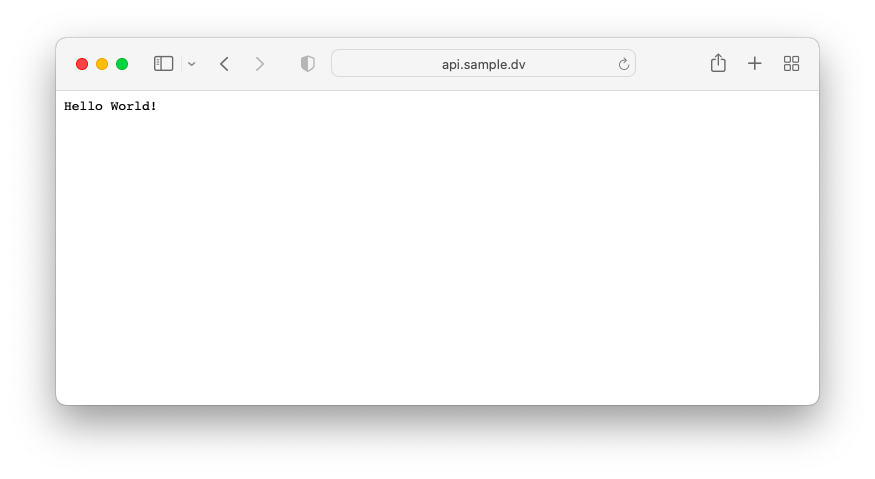
Great!
Next, let’s configure a flask application!
Note
When configuring our WSGI app at the root of the VirtualHost, all requests are passed through it, meaning, something like: http://sample.dv/robots.txt or http://sample.dv/favicon.ico should be handled by your WSGI script. — Another option is to add aliases to such static files in the Apache VirtualHost config file, as follows:
<VirtualHost *:80>
  ServerName sample.dv
  DocumentRoot /var/www/wsgi/sample

  Alias /robots.txt /var/www/wsgi/sample/robots.txt
  Alias /favicon.ico /var/www/wsgi/sample/favicon.ico

  WSGIScriptAlias / /var/www/wsgi/sample/app.wsgi

  <Directory /var/www/wsgi/sample>
    Require all granted
  </Directory>
</VirtualHost>
Enters Flask
Now that we have the apache configured with wsgi, and everything is working, let’s test flask.
For the sake of this tutorial, we will first install flask globally, with sudo, which is absolutely not recommended, in a real environment.
sudo pip install flask
This will install flask to the whole system, so apache can find it.
Now, let’s create a simple folder structure, we’ll keep our app.wsgi as it is for now, and create a folder myapp besides it. Within myapp, let’s create an __init__.py with the following sample application:
from flask import Flask

app = Flask(__name__)
app.config['SECRET_KEY'] = 'SOME_SECRET'

@app.route('/')
def home():
  return '<h1>Hellow, World</h1>'
Back to editing app.wsgi, we’ll need to add our path to the system path, then run our application:
#!/usr/bin/python
import sys

# the folder of our application must be in the system path
sys.path.insert(0, "/var/www/wsgi/sample/")

# import thr flask app - must be as 'application'
from myapp import app as application

if __name__ == '__main__':
    application.run()
Restarting apache:sudo systemctl restart httpd
And we can now test our app:
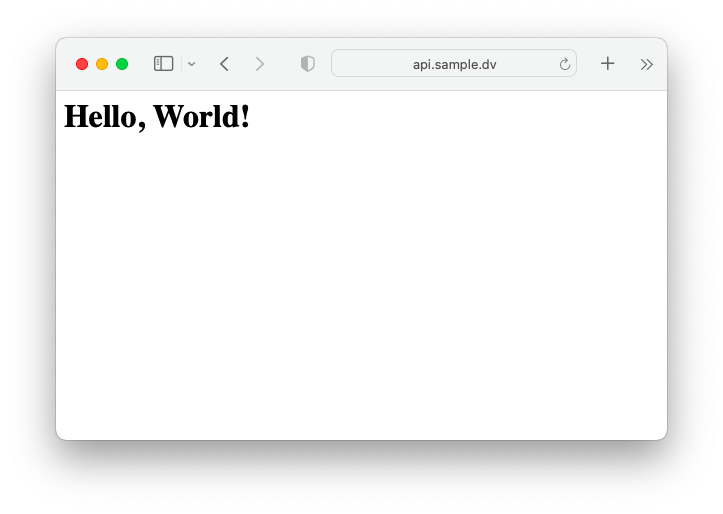
So far so good, but we shouldn’t install our python modules globally. The best way to do this is via virtual environments.
For this, we will create a virtual environment for our application, in which we will install all the modules needed, and setup everything the way we like. Then we will instruct apache WSGI module to run our app from there.
To do this, we will use the WSGIDaemonProcess instruction into our apache config file. This has another benefit of running the application in its own daemon process, as well, which increases the apache server stability and allows for restarting our flask application without affecting the global apache server.
In this context, let’s first create a virtual environment for our application. Here, I will be using pipenv (install it, if it is not already installed)
Note
I like to keep the virtual environment inside the same directory that the application is, for this, I will first set the environment variable PIPENV_VENV_IN_PROJECT to true. This is one of the methods to do that.
So, from within the /var/www/wsgi/sample/, let’s set the PIPENV_VENV_IN_PROJECT:
export PIPENV_VENV_IN_PROJECT=trueNext, let’s create our virtual environment, and install our flask module within it
pipenv shell
pipenv install flask
Now, let’s exit the virtual environment, exit, and I would like to uninstall the flask module that I have installed globally.
pip uninstall flask
sudo pip uninstall flask
Depending on how it was installed, in the first place.
Note
Using pipenv shell created a few additional files and a folder for us, namely: Pipfile, Pipfile.lock and a dot-folder: .venv, which is the root for our virtual environment.
Back to the config file, and we’ll add 3 instructions to it as follows
<VirtualHost *:80>
  ServerName sample.dv
  DocumentRoot /var/www/wsgi/sample

  Alias /robots.txt /var/www/wsgi/sample/robots.txt
  Alias /favicon.ico /var/www/wsgi/sample/favicon.ico

  WSGIDaemonProcess sample python-home=/var/www/wsgi/sample/.venv
  WSGIProcessGroup sample
  WSGIApplicationGroup %{GLOBAL}
  WSGIScriptAlias / /var/www/wsgi/sample/app.wsgi

  <Directory /var/www/wsgi/sample>
    Require all granted
  </Directory>
</VirtualHost>
Here we have set a daemon process with the name sample, and set the python-home to the virtual environment directory /var/www/wsgi/sample/.venv that was created with pipenv. Moreover, we set a process group sample for this application, and append it to the global %{GLOBAL}
With this, we can now restart apache, and our application will be working under the domain sample.dv on port 80
But before that, let me add a few lines of code to the application to make sure it is actually working from within the virtual environment, as an additional confirmation – It should fail anyway, if it was running globally, since we have uninstalled flask globally.
Let’s create a function is_venv(), which will return True if we’re running from within a virtual environment.
def is_venv():
    return (hasattr(sys, 'real_prefix') or
            (hasattr(sys, 'base_prefix') and sys.base_prefix != sys.prefix))
An then use this in our flask return:
@app.route('/')
def home():
  st = 'We are running from within the virtualenv' if is_venv() else 'We are running globally'
  return f'<h1>Hello, Apache!</h1><p>{st}</p>'
Restarting apache:
sudo systemctl restart httpdAnd finally, let’s check our application:
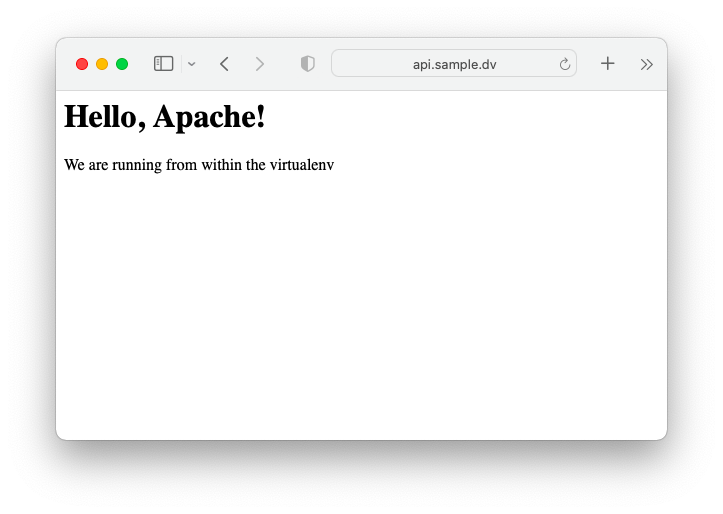
DONE!
Additional Notes
- It is always a good idea to set a custom error log file, so you can track any error messages, especially in the early stages after deployment. To do so, just add this to the virtual host configuration file, after the
<Directory>section.
  ErrorLog /var/www/wsgi/sample/error.log
LogLevel warn- Make sure your application does not
printto the standard output, as the WSGI module will not allow that. If you have any print statements, you can either change the output stream or change the print statement to write to a log file, or whatever other solution. - If you are using authorization solutions that depend on the Authorization Header being passed, such as Flask_JWT, for example, it must be noted that for security reasons the WSGI module does not pass the Authorization Header to the python script by default. This will result in Authorization issues. To solve this, one must use the
WSGIPassAuthorizationdirective in the apache virtual server definition, setting it toON. [see the WSGI documentation]
WSGIPassAuthorization On